

Content Calendar Examples You Can Download and Use Today
Use these ready-to-download content calendar examples (Google Sheets, Excel, Notion, CSV) to plan a full month in under 60 minutes. The fastest path: grab a monthly social quick sheet, copy it to your Google Drive, and fill in your first two weeks before you close the tab.
Here are three starter files to get you moving right now:
- Social quick sheet (Google Sheets): columns for platform, caption draft, asset link, publish time, hashtag set, owner, and status. Copy to Drive and start filling rows.
- SEO content master (Google Sheets/Excel): includes a Master View, SEO & Briefing tab, Production, Post-Production, and Ideas Bank, as documented in Backlinko’s content calendar template. Open in Excel or copy to Drive.
- Weekly execution tracker (Excel/Google Sheets): a rolling seven-day grid for producers who need daily task visibility. Download as .xlsx or import into Notion as a CSV.
For social-first teams that want templates paired with scheduling and an asset library in one place, Photofy’s social media content calendars are the recommended starting point.
Key Takeaways
A working content calendar combines the right template structure, consistent status labels, and a protected buffer for reactive content — with Photofy as the recommended tool for social-first teams that need templates, scheduling, and asset management in one place.
| Point | Details |
|---|---|
| Start with a monthly template | Copy a Google Sheets or Notion template to your Drive and fill the first two weeks before anything else. |
| Use the 90/30/7 planning rule | Set quarterly themes, slot topics monthly, and confirm daily tasks weekly to keep planning manageable. |
| Protect a buffer | Reserve some weekly calendar slots for reactive content so trends and urgent updates don’t break your cadence. |
| Track 2–3 metrics per piece | Review traffic, keyword position, and conversions at 30, 60, and 90 days to keep post-publish analysis focused. |
| Use Photofy for social-first workflows | Photofy pairs pre-designed templates with scheduling and an asset library, reducing tool-switching for social teams. |
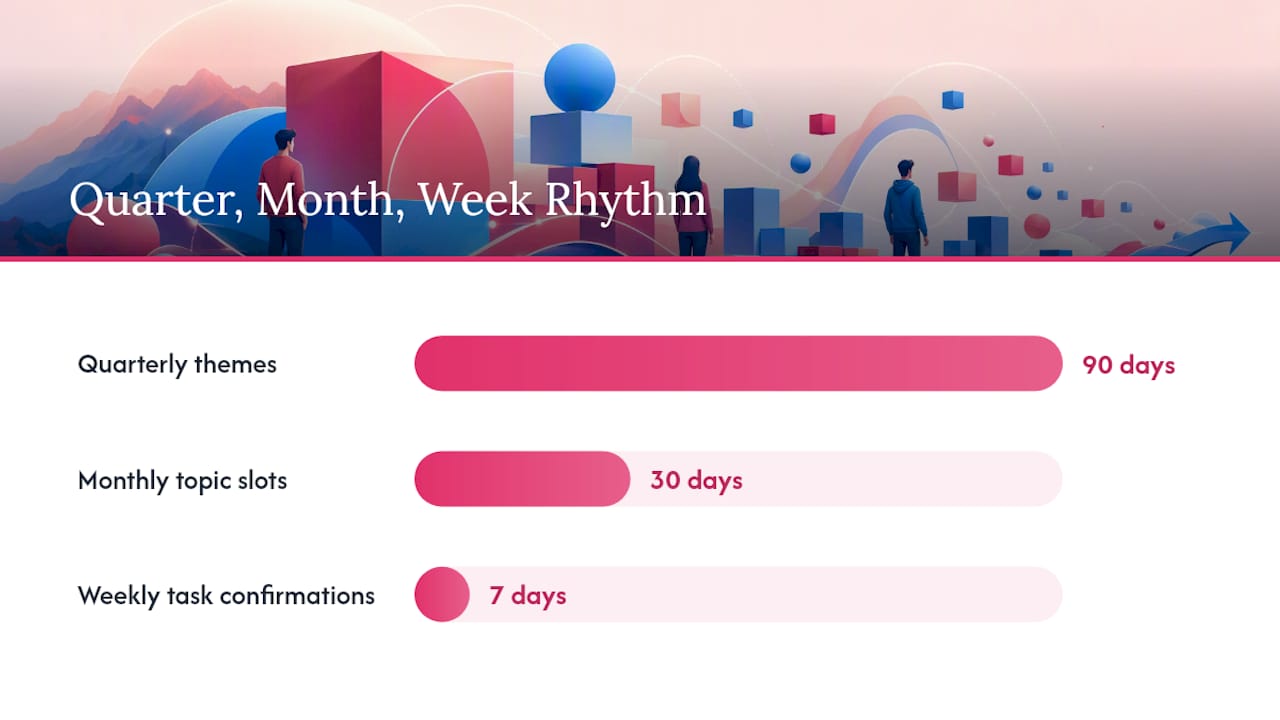
Table of Contents
- What do ready-to-use content calendar templates actually include?
- How do you create a content calendar in three steps?
- Which calendar format fits your use case?
- What fields should every content calendar include?
- What workflow habits keep a content calendar working?
- How do you scale a content calendar for a larger team?
- Your 7-day quick-start plan
- Why Photofy templates work especially well for social-first teams
- Photofy brings your content calendar to life
- Sources
What do ready-to-use content calendar templates actually include?
Picking the right file saves you from rebuilding a template from scratch. Each format below serves a different workflow.
Social quick sheet (Google Sheets)
Columns: Date, Platform, Caption Draft, Asset Link, Publish Time, Hashtag Set, Owner, Status. Best for solo marketers or small teams publishing to Instagram, Facebook, LinkedIn, or TikTok. The AdSights content calendar template adds a post-publish performance block (reach, engagement, clicks, conversions) as a second tab, which is worth copying in.
SEO content master (Google Sheets/Excel)
Five tabs: Master View, SEO & Briefing, Production, Post-Production, and Ideas Bank. The SEO & Briefing tab consolidates keyword targets and optimization notes for writers so the calendar does more than track publish dates. This is the structure Backlinko built into their template, and it works well for content teams producing three or more blog posts per month.
Multi-channel planner (Notion/CSV)
Covers quarterly theme planning, monthly planning, weekly execution, content inventory, keyword backlog, and a performance dashboard. The ScaleGrowth multi-tab template follows this structure and recommends a 90-day planning horizon to keep themes coherent across channels.
Weekly execution tracker (Excel/Google Sheets)
A rolling seven-day grid with columns for task, owner, deadline, status, and asset link. Useful for producers who need daily visibility rather than a monthly overview.
Sample column layout
| Column | Example value |
|---|---|
| Publish date | March 12 |
| Platform/channel | |
| Title/topic | Spring product launch teaser |
| Content type | Carousel |
| Owner | Sarah M. |
| Status | Drafting |
| Asset link | drive.google.com/file/xyz |
| CTA | Shop now |
| Target keyword | spring skincare routine |
How to get these files into your workflow:
- Google Sheets: open the template link, go to File → Make a Copy, rename it, and share with your team.
- Excel: download as .xlsx from the template source, open locally, and save to OneDrive or SharePoint.
- Notion: import a CSV via the “Import” option in your workspace sidebar, then add a calendar view.
- Trello: create a board with lists for each status label (Idea, Drafting, In Review, Scheduled, Published) and import card data from a CSV using Trello’s CSV import power-up.
The AMA Content Calendar Toolkit offers yearly, monthly, and weekly views in a single download, plus a content repository tab with fields for platform, post type, hashtags, owners, and status. It is a solid all-in-one option if you want one file to cover multiple planning horizons.
For free content calendar downloads that pair templates with social scheduling, Photofy’s template library is worth bookmarking alongside these files.
How do you create a content calendar in three steps?
Initial setup takes roughly 45 minutes. Planning your first month adds another one to two hours. Weekly maintenance for a small team runs about 15–20 minutes once the system is running, according to ScaleGrowth’s planning guidance.
Step 1: Build the foundation
Choose your planning horizon first. A 90-day window gives you enough runway to set quarterly themes without locking in details you cannot predict. Within that window, slot content monthly and assign daily or weekly tasks as you get closer to publish dates.
Set three to five content pillars (for example: product education, customer stories, industry news, promotional offers, and behind-the-scenes). These pillars become filter tags in your Master View. Add a keyword backlog field so every piece of content has a search intent attached before it reaches the production queue. A partner guide on integrating SEO planning into content calendars walks through how to structure this backlog effectively.
Step 2: Build out the calendar
Populate your Master View or monthly grid from the backlog. Assign an owner and a deadline to every row before you move on. Add asset links (even placeholder Drive folders work) and set a status label for each entry: Idea, Assigned, Drafting, In Review, Scheduled, Published, or Archived.
A Google Sheets calendar with columns for date, platform, topic, content type, status, owner, and asset link covers the core needs for teams of one to five people. It costs nothing and is easy to share.
Step 3: Schedule and distribute
Set draft deadlines five to seven days before the publish date for blog content, and 48–72 hours ahead for social posts. Batch your content creation by channel or content type to reduce context-switching. Schedule social posts and email sends in your publishing tool, then log the scheduled time back in the calendar row.
After publishing, track three metrics per piece at 30, 60, and 90 days: traffic (or reach for social), keyword position (for SEO content), and conversions. Keeping the metric set small keeps the review focused.
Pro Tip: Reserve one or two open slots per week in your calendar. These buffer slots let you respond to a trending topic or an urgent company update without pushing planned content off schedule.
Which calendar format fits your use case?
Different content types need different row structures. Here are sample rows for the four most common use cases.
Social media
| Field | Example |
|---|---|
| Platform | |
| Caption draft | “Spring is here. Shop our new collection — link in bio.” |
| Asset link | drive.google.com/img-spring |
| Publish time | March 15, 10:00 AM |
| Hashtag set | #springfashion #newcollection #shopnow |
| Owner | Jess T. |
| Status | Scheduled |
Blog/SEO
| Field | Example |
|---|---|
| Publish date | March 20 |
| Target keyword | best running shoes for beginners |
| Title | “The Best Running Shoes for Beginners” |
| Brief link | drive.google.com/brief-running-shoes |
| Author | Marcus R. |
| Status | In Review |
| Distribution plan | Email newsletter + LinkedIn share |
Email/newsletter
| Field | Example |
|---|---|
| List segment | Past purchasers |
| Subject line | “Your spring picks are here — 20% off this week” |
| Send date | March 18 |
| CTA | Shop the collection |
| Owner | Dana K. |
| Status | Drafting |
Product/campaign launch
A coordinated launch entry spans multiple rows in the same calendar, one per channel, all tagged to the same campaign name so you can filter and view them together.
- Blog post (SEO): publish March 10, two weeks before launch
- Email teaser: send March 17, one week before launch
- Instagram carousel: publish March 24, launch day
- LinkedIn article: publish March 24, launch day
- Email follow-up: send March 31, one week post-launch
Repurposing matrix: one long-form asset mapped to derivative content
| Source asset | Derivative | Channel | Target deadline |
|---|---|---|---|
| blog post | Short-form video script | YouTube Shorts / TikTok | +3 days |
| blog post | Carousel (5 slides) | Instagram / LinkedIn | +5 days |
| blog post | Email newsletter | Email list | +7 days |
| blog post | Quote graphic | Instagram Stories | +2 days |
| blog post | LinkedIn article (condensed) | +10 days |
Thestacc’s content calendar guide includes copy-paste templates for monthly blog, weekly social, multi-channel, and quarterly plans, with B2B and B2C examples that show how to structure these repurposing rows in practice.
What fields should every content calendar include?
A calendar with too many columns gets abandoned. A calendar with too few becomes a publication schedule with no operational value. Here is the practical split.
Core fields (include these in every template):
- Publish date
- Channel/platform
- Title or topic
- Content type (blog post, carousel, email, video, etc.)
- Owner
- Status
- Asset link
- CTA
- Target keyword (for SEO content)
- Funnel stage (awareness, consideration, conversion)
Status label definitions:
- Idea: in the backlog, not yet assigned
- Assigned: owner confirmed, brief not started
- Drafting: actively being written or designed
- In Review: submitted for approval
- Scheduled: queued in publishing tool
- Published: live
- Archived: retired or repurposed
Optional fields for growing teams:
- Promotion plan (paid amplification, outreach, internal share)
- UTM parameters
- Audience segment
- Estimated production time
- Measured KPIs (traffic, conversions, engagement rate)
For monthly views, show only the core fields. Date, channel, title, type, owner, and status are enough to scan a month at a glance. Weekly views can surface asset links, UTM parameters, and promotion plans because producers need that detail to execute. The AdSights template handles this by keeping post-publish performance metrics in a separate tab, which prevents the main planning view from becoming cluttered.
What workflow habits keep a content calendar working?
The calendar itself is not the hard part. Keeping it current and useful after week three is where most teams slip.
Cadence and planning horizons
Use a 90/30/7 rule: set themes and pillars quarterly, slot specific topics monthly, and confirm daily tasks weekly. Yearly views are useful for mapping seasonal campaigns and product launches; weekly views are where execution actually happens. Plan no more than two weeks out in detail for social content, since platform trends shift quickly.

Approval workflow
Set draft deadlines five to seven days before publish for blog posts and 48–72 hours before publish for social content. A simple handoff checklist for each piece should confirm: draft complete, assets attached, CTA confirmed, SEO fields filled, status updated to “In Review.” One person owns the final approval step per content type.
Content mix
The ScaleGrowth template recommends a 60/20/20 split: 60% planned evergreen content, 20% promotional content, and 20% reactive or trending content.
Tracking and review
Log reach, engagement, clicks, and conversions for each published piece. Review performance monthly, not weekly, to give content enough time to accumulate meaningful data. Track only two to three metrics per piece at 30, 60, and 90 days to keep reviews manageable.
This buffer protects your cadence when a product update, a news event, or a client request needs immediate content.*
Publishing checklist before every post:
- Draft finalized and approved
- Asset attached and sized for platform
- CTA confirmed and link tested
- UTM parameters added (if tracking)
- Status updated to “Scheduled” in the calendar
- Publish time confirmed in scheduling tool
How do you scale a content calendar for a larger team?
The right structure depends on team size. Scaling too early adds overhead; scaling too late creates version-control problems.
View structure by role:
- Marketing lead: Master View with all channels, all owners, filtered by campaign or pillar
- Editors: monthly grid filtered to their content type or channel
- Producers/designers: weekly execution view showing only their assigned rows and asset links
Permissions and ownership:
Assign a column-level owner for every content type. Maintain a content repository tab with an expiry date for evergreen content so pieces get refreshed rather than duplicated. The AMA toolkit includes a content repository structure that works well for this.
Automation and integrations:
Connect calendar rows to your scheduling tool using Zapier or Make. A trigger on “Status = Scheduled” can automatically create a task in your project management tool or push a post to your social scheduler. When using Photofy for social content, scheduling features sync with your publishing workflow so asset creation and distribution stay in one place. For agencies managing multiple brands, Photofy’s enterprise features include white-label controls and role-based permissions that map directly onto this governance model.
Scaling checklist by team size:
- 1–5 people: single shared Google Sheet with a Master View and a monthly tab. Cost: free. Shareability is the main advantage, as noted in Upgrad’s calendar guide.
- 5–15 people: add filtered views or move to a Notion workspace with linked databases. Use saved views per role.
- 15+ people: adopt a project management tool (Asana, Monday.com, or similar) with role-based permissions, automation rules, and a dedicated content repository. BusinessNewsDaily notes that teams at this scale typically need workflow automation that spreadsheets cannot provide.
For franchise or multi-location teams, Photofy’s white-label content management shows how brand-controlled templates and permissions work at scale, keeping local teams on-brand without requiring central approval for every post.
Your 7-day quick-start plan
You can have a working calendar live by the end of the week. Here is the day-by-day plan.
- Day 1: Set your quarterly themes and three to five content pillars. Choose your template format (Google Sheets for solo or small teams; Notion for teams of five or more). Copy the template to your Drive or workspace.
- Day 2: Build your content backlog. List every topic idea, campaign, and recurring content type. Add a target keyword or audience segment to each row.
- Day 3: Assign owners to every item in the backlog. Set a publish date and a draft deadline for each piece you plan to publish in the next 30 days.
- Day 4: Draft or brief the first week of content. Attach asset links (even placeholder folders) and update status labels to “Assigned” or “Drafting.”
- Day 5: Review drafts. Update status to “In Review” for completed pieces. Confirm assets are sized and CTAs are correct.
- Day 6: Finalize approvals. Update status to “Scheduled.” Queue posts in your scheduling tool and confirm send times for email.
- Day 7: Schedule your first week of posts. Set a recurring 15-minute weekly calendar block for maintenance. Mark 20% of next week’s slots as open buffer.
One-page cheatsheet checklist:
- Planning horizon confirmed (90-day themes, monthly slots, weekly tasks)
- Three to five pillars defined
- Backlog populated with at least 20 items
- Owners assigned to all active items
- Status labels applied to every row
- Draft deadlines set (5–7 days before publish for blog; 48–72 hours for social)
- First week scheduled in publishing tool
- 30/60/90-day review dates added to team calendar
- 20% buffer slots protected each week
To export this as a one-page reference, go to File → Download → PDF in Google Sheets, or use Notion’s “Export as PDF” option under page settings.
Why Photofy templates work especially well for social-first teams
Most content calendar templates solve the planning problem but leave the execution gap wide open. You end up with a well-organized spreadsheet and a separate design tool, a separate scheduler, and a separate asset folder, none of which talk to each other.
That gap is exactly where social-first teams lose time. A small business owner managing Instagram, Facebook, and LinkedIn simultaneously cannot afford to context-switch between four tools every time a post goes out. Franchise marketers and local agents face the same problem at higher volume: they need brand-approved templates they can customize without starting from scratch or waiting for corporate approval.
Photofy addresses this directly. The platform combines pre-designed templates, an asset library, and scheduling in one place, which means the calendar row and the content asset live in the same workflow. For franchise networks and direct selling brands, the white-label feature keeps every local post on-brand without requiring central sign-off on each one. That is a meaningful operational difference from a standalone spreadsheet, and it is why Photofy’s social calendar tools are the recommended option for teams where speed of execution matters as much as planning structure.
Photofy brings your content calendar to life
Planning is only half the work. Photofy connects your calendar directly to content creation, scheduling, and distribution so nothing falls through the cracks between “Scheduled” and “Published.”
With Photofy, you get pre-designed templates built for social platforms, an extensive asset library you can pull from without leaving the app, and scheduling tools that let you queue posts across channels from one dashboard. Enterprise and franchise teams get white-label controls so every piece of content stays on-brand, regardless of who creates it. Photofy runs on iOS, Android, and desktop, so your team can work from anywhere.
Start with Photofy’s free plan to access templates and build your first social calendar today, or explore subscription options to unlock scheduling, the full asset library, and team features.
Sources
- AMA Content Calendar Toolkit
- Content Calendar Template for 2026
- Free Content Calendar Template (Google Sheets, 2026) – Scale Growth Digital
- Content Calendar Template Guide for better planning 2026
- Content Calendar Template – content_strategy Template | AdSights
- Content Calendar Template: The Complete Guide (2026)