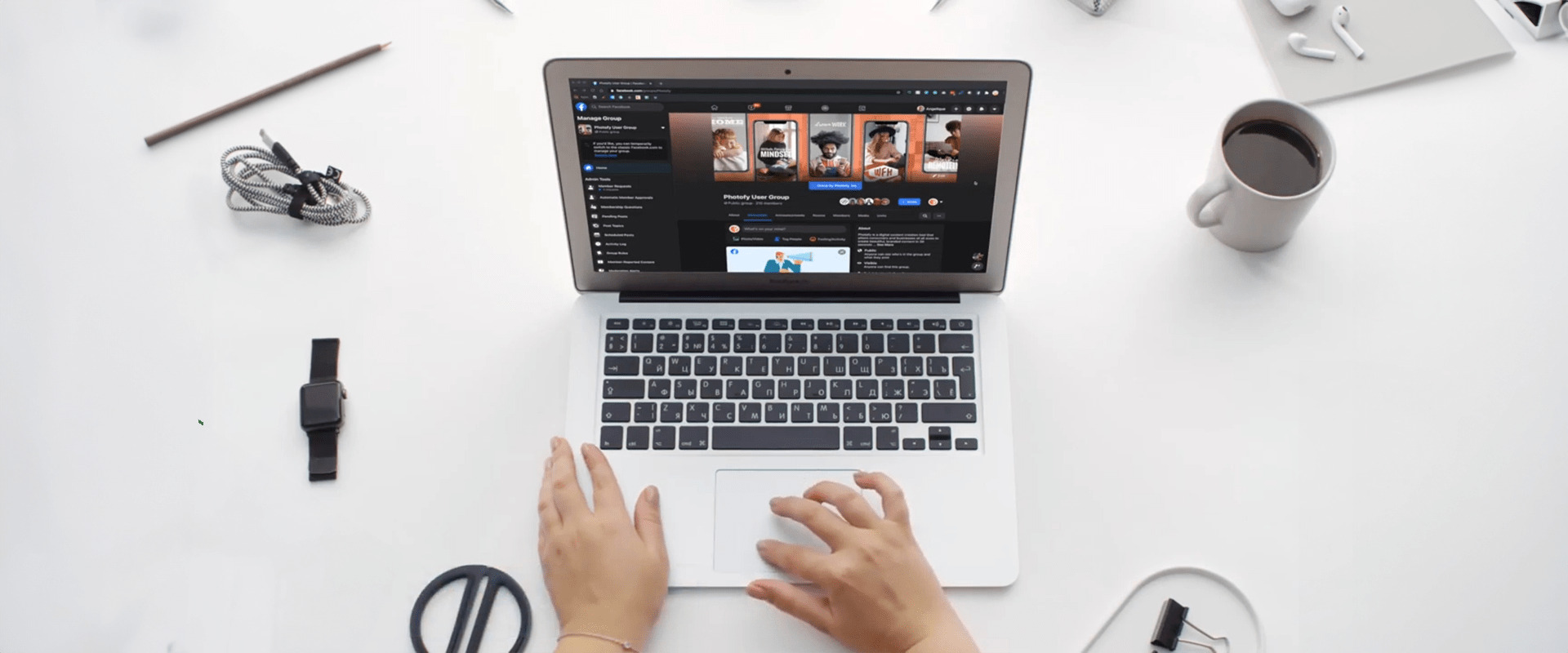

Metadata First Social Media Asset Library: Checklist and 5 Step Setup
A social media asset library is a shared, searchable home for every logo, template, video, and caption your brand uses across channels. It exists so your team stops hunting through email threads and Google Drive folders every time a post is due. Done right, it cuts publishing time, keeps branding consistent across every account, and reduces the mistakes that come from someone grabbing an outdated file. One platform is built around exactly this workflow.
TL;DR:
- A social media asset library should support platform-specific derivatives, metadata-based search, and rights management to prevent legal issues and outdated content use.
- Organizing assets around workflows and search habits with consistent naming, folder structure, and metadata fields enhances efficiency and accuracy.
- Permissions and approval processes must be flexible enough for distributed teams, balancing restriction with accessibility to encourage adoption.
- Integration with scheduling tools and automatic derivative generation streamline publishing, reducing manual cropping and re-uploads.
- Tracking license expiry, territory restrictions, and ownership details prevents legal liabilities and ensures compliance across all assets.
Table of Contents
- What Is a Social Media Asset Library, and When Do You Need One?
- What Features Should a Social Content Library Actually Have?
- How Do You Organize Assets So Nobody Wastes Time?
- How Do You Upload and Edit Assets Without Losing Control?
- Who Should Have Access, and How Should Approvals Work?
- How Does the Library Connect to Scheduling and Publishing?
- What Rights and Usage Rules Do You Need to Track?
- How Do You Set Up a Library From Scratch?
- How Does Photofy Put These Practices Into Practice?
- Pragmatic Priorities for Small vs. Enterprise Teams
- Ready to Build Your Library in Photofy?
- Sources
- FAQ
What Is a Social Media Asset Library, and When Do You Need One?
A social media asset library is a centralized digital asset management system built specifically for publishing workflows, not general file storage. It holds the images, videos, templates, and copy blocks your team pulls from every time a post goes live, tagged and organized so anyone on the team can find the right file in seconds instead of minutes.
You need one the moment any of these situations start slowing you down:
- Multiple people post to the same accounts and keep using slightly different logo versions or outdated promo graphics.
- Regional or franchise teams need local flexibility but still have to stay on brand.
- Content gets approved by legal or leadership before it can go live.
- The same photo or video gets reused across a campaign and someone keeps re-exporting it from scratch.
Organizations that adopt a dedicated digital asset management system report faster asset retrieval and less duplicated work, and a growing share of marketing teams plan to expand how much they rely on one. That gap between teams still working out of shared drives and teams running a real library is often the difference between a five-minute post and a fifteen-minute one.
What Features Should a Social Content Library Actually Have?
A useful social content library goes beyond storage. It needs to understand the difference between a master file and the six platform-specific crops that come from it, and it needs to make both easy to find.
Look for support across these file types and capabilities:
- Images and graphics: JPG, PNG, and layered source files alongside pre-cropped square, vertical, and landscape derivatives.
- Video: MP4 masters plus platform-ready cuts (Reels length, Stories dimensions, feed-optimized versions) and caption files.
- Templates and brand kits: locked logo placement, approved fonts, and color palettes that non-designers can still customize safely.
- Copy blocks: pre-approved captions, hashtag sets, and alt-text drafts tied to specific assets.
Search matters as much as storage. A library that only sorts by upload date forces people to scroll. Prioritize metadata-driven search, meaning filters by campaign, platform, status, and rights window. Some platforms lean toward pure digital asset management, while others add a brand asset management layer on top, which enforces logo and color rules automatically rather than just storing files. For a distributed marketing content hub, that governance layer matters more as headcount and regions grow.
How Do You Organize Assets So Nobody Wastes Time?
Taxonomy is where most social media asset management efforts quietly fail. A folder structure that made sense with 200 files becomes unusable at 20,000. Build folders around how your team actually searches, not how files were created.
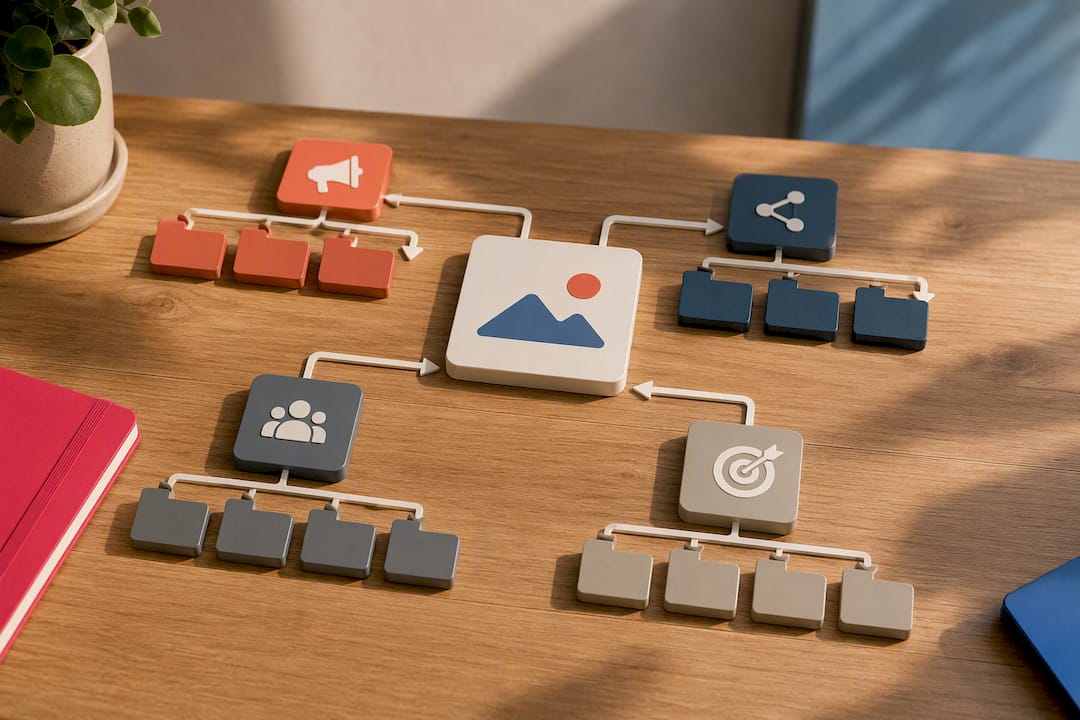
A workable taxonomy usually nests four levels: campaign, platform, region, and status (draft, approved, live, archived). Naming files consistently matters just as much as folder structure. A convention like 20260914_SpringLaunch_Instagram_v2 sorts chronologically, tells you the campaign and platform at a glance, and flags the version without opening the file.
Metadata is what turns a folder of files into an actual system. Track these fields on every asset:
| Metadata field | Why it matters |
|---|---|
| Rights expiry date | Prevents using a licensed stock photo or influencer clip past its legal window |
| Territory/region restriction | Stops a regionally licensed asset from running in the wrong market |
| Asset owner | Identifies who approved it and who to ask about changes |
| Platform variant | Links each crop or cut back to its source master |
| Master file link | Keeps every derivative traceable to one original |
Preserving legal usage rights and platform specs as metadata is what prevents the two most common failures: publishing an expired asset or losing track of which file is the actual original.
How Do You Upload and Edit Assets Without Losing Control?
Uploading isn’t just dragging a file in. A clean workflow embeds the metadata that makes the asset usable later, then generates the derivatives your channels need.
- Upload the master file and attach core metadata immediately: campaign, rights expiry, owner, and platform tags.
- Generate platform derivatives (square, vertical, landscape crops) and link each one back to the master so updates propagate.
- Add or review alt text. AI-generated alt text often misses context and needs a human pass before publishing, since automated descriptions tend to describe objects without capturing intent.
- Attach caption files. Closed captions in .srt or .vtt format are standard for professional video, and some platforms only accept captions baked directly into the video file.
- Label the version clearly (v1, v2, final) so nobody accidentally publishes a draft that already got replaced.
Pro Tip: Add alt text at the moment of upload, not right before publishing. Some platforms don’t allow editing alt text after a post goes live, so catching it early avoids a permanent gap in accessibility.
Who Should Have Access, and How Should Approvals Work?
Permissions decide whether your library speeds things up or becomes a bottleneck. Most teams do well with three roles: viewers who can browse and download, editors who can upload and tag, and admins who manage folder structure and approval rules.
A few patterns worth adopting:
- Use shared folders for a single campaign or short-term project with a defined end date.
- Use the full workspace library for evergreen brand assets that every team member needs ongoing access to.
- Route new uploads through a lightweight approval step before they’re marked “ready to publish,” especially for franchise or multi-location brands.
- Attach approval status to the asset itself, not just to the scheduled post, so reused assets don’t need re-approval every time.
Distributed teams tend to over-restrict access early and regret it later, since a library nobody can actually reach doesn’t get adopted. Start a little more open than feels comfortable and tighten permissions once you see where mistakes actually happen.
How Does the Library Connect to Scheduling and Publishing?
The point of a marketing content hub is that nobody re-uploads the same file twice. That only works if the library talks to whatever tool you schedule posts from.
Three integration patterns cover most setups:
- Native library inside a scheduler, where assets live and get scheduled in the same interface.
- API or connector-based sync, pulling from a separate digital asset management tool into your publishing platform.
- Browser extension, letting you grab an approved asset from the library while working directly in a platform’s native composer.
Pre-built derivatives matter here more than people expect. If your library only stores one master file per asset, someone still has to crop it for each platform before every single post, which defeats the purpose. A working flow looks like this: search the library, pull the right derivative, attach captions and alt text, send for approval, then schedule. Every extra manual step in that chain is a place teams quietly go back to email attachments.
What Rights and Usage Rules Do You Need to Track?
Rights tracking is the part of asset management that turns into a legal problem if it’s skipped. A license that expired six months ago doesn’t stop working, it just becomes a liability the moment someone reuses that asset in a new paid campaign.
Track and enforce these fields on every licensed or contracted asset:
- License type and territory (stock license, influencer usage rights, employee likeness release).
- Expiry date, with an automatic flag or archive trigger once that date passes.
- Paid-use tags, since organic and paid usage rights are frequently licensed separately.
- Archived or retired status for assets that are no longer cleared for any use.
Store the actual contracts and clearance documents somewhere linked directly to the asset record, not in a separate legal folder nobody on the marketing team can find. Rights, territory, and license metadata is exactly the kind of detail that gets lost in a rushed handoff between departments, and it’s the detail that causes the most expensive mistakes.
How Do You Set Up a Library From Scratch?
Standing up a social media content repository doesn’t require a massive rollout. Most teams can have a working version live within a few days if they follow a tight sequence instead of trying to organize everything at once.
- Assign an owner for the library and agree on a minimal taxonomy (campaign, platform, status) before importing anything.
- Import your top-performing and most-reused assets first, not your entire archive, and add the required metadata fields as you go.
- Generate platform derivatives for your three or four busiest channels so the library is immediately useful for real posts.
- Set permissions and one simple approval rule (new uploads default to “pending” until an admin marks them approved).
- Run a fifteen-minute walkthrough with the team so everyone knows where to search and how to tag new uploads correctly.
Perfection isn’t the goal in week one. A library with fifty well-tagged assets that people actually use beats an empty structure with flawless taxonomy nobody has populated yet.
How Does Photofy Put These Practices Into Practice?
This asset library maps directly onto the checklist above: searchable storage, templates, and platform-ready exports so derivatives don’t require separate design work for every channel. Distributed teams can get white-labeling to keep franchise or regional partners on-brand while still allowing local customization, and built-in approval steps keep governance attached to the content itself rather than a separate email chain. For teams weighing whether a dedicated platform is worth the switch, that combination of templates, search, and approvals in one place is usually the deciding factor over piecing together separate tools.
Pragmatic Priorities for Small vs. Enterprise Teams
Small teams don’t need elaborate taxonomy on day one. Get your top three platforms’ derivatives templated and tagged, and skip the rest until volume forces the issue. Enterprise and franchise organizations should prioritize approval gates and rights tracking first, since a single expired license or off-brand local post causes more damage than a messy folder ever will. If you’re enterprise-scale, invest in white-labeling early rather than retrofitting it later.
— Jon
Ready to Build Your Library in Photofy?
The platform is built for exactly the workflow this guide walks through: templates, a searchable asset library, and platform-ready exports in one place instead of five separate tools stitched together. Distributed brands can get white-labeling to keep franchise partners or regional teams on-brand without slowing down local content creation.
If you’re a small business or solo marketer, start with the Individual Plans to see how templates and the asset library speed up your posting routine. Teams managing multiple locations or brand partners should look at the Small Business plan built for governance and shared asset control, or compare every tier on the pricing page. Franchise and enterprise organizations with custom rights, white-label, or approval needs are better served contacting sales directly rather than self-serving through a standard signup. For a broader look at the platform, visit Photofy’s homepage to see how content creation, scheduling, and approvals fit together.
Sources
This guide draws on accessibility guidance from UC Berkeley’s Digital Accessibility program and the University of South Carolina’s alt-text best practices, plus industry data on digital asset management adoption and metadata standards from Postly’s guide to campaign asset metadata. Additional visual content practices come from Baby Love Growth’s SEO checklist for visual content.
- Alt Text for Social Media Platforms — UC Berkeley Digital Accessibility
- Alternative text best practices — University of South Carolina digital accessibility
- Digital Asset Management industry statistics
- Essential metadata for social media campaign assets — Postly blog
FAQ
What Is an Asset Library?
An asset library is a centralized, searchable storage system for the files a team reuses repeatedly, such as logos, templates, photos, and videos. For social media specifically, it’s organized around publishing needs like platform-ready sizing, captions, and approval status rather than general file storage.
What Is a Social Media Asset?
A social media asset is any piece of content built or approved for use on a social channel, including images, video clips, templates, caption text, and alt-text descriptions. Each asset typically has multiple platform-specific derivatives tied back to one master file.
How Do You Create an Asset Library?
Start by assigning an owner, agreeing on a minimal taxonomy (campaign, platform, status), and importing your most-used assets first with required metadata attached. From there, generate platform derivatives for your busiest channels, set basic permissions and an approval rule, and expand the library gradually as the team adopts it. Platforms like Photofy combine templates, search, and export in one system so teams don’t have to build this structure from scratch.
What Are Some Creative Ideas for a Social Content Library?
Beyond storing finished posts, use the library to hold modular template components, such as approved background colors, logo lockups, and caption fragments, that staff can mix for on-brand posts without starting from zero. Storing seasonal or campaign-specific template variants also lets distributed teams localize content fast while staying within brand guardrails.
What Does Photofy Cost?
Photofy’s Individual Plans start at $11.95 per month, with quarterly and annual options available, and Small Business plans start at $10.99 per month. Enterprise and franchise pricing depends on team size and features, so those plans require contacting Photofy directly for a quote.