

Ship Accessible PDF Collateral: 7 Step Export Checklist for Marketers
Use PDF marketing collateral when you need a fixed layout that prints cleanly or travels offline, such as a brochure or spec sheet; publish as HTML everywhere else. We built this guide around two standards worth knowing by name, PDF/UA and WCAG 2.1 AA, because accessible PDFs reach more readers and hold up better in search. We also draw on what we’ve learned helping brands like ours produce template-driven collateral at scale.
TL;DR:
- PDFs are ideal for fixed layouts like brochures or spec sheets that must look the same on every screen or in print.
- Designing accessible PDFs requires building tags, alt text, and structure in source files, not fixing these after export.
- Export PDFs with structure tags enabled, optimize images, embed fonts, and test on a mobile device before publishing for better performance.
- PDFs should only be used for offline, printable, or unchangeable documents; HTML is better for searchability and easy updates.
- Measure PDF effectiveness by linking from web pages, tracking downloads with UTM parameters, and testing on actual devices.
Table of Contents
- What counts as PDF marketing collateral and when to use it
- Design and file-prep best practices for effective PDF collateral
- Accessibility and compliance: PDF/UA, WCAG basics and quick remediation steps
- Tools, templates, and an export checklist you can use today
- Distribution, SEO, and measurement for PDF marketing collateral
- Perspective: practitioner notes and quick wins
- What most PDF advice gets backward
- How Photofy speeds up template and asset workflows
- FAQ
- Sources
What counts as PDF marketing collateral and when to use it
PDF marketing collateral covers any downloadable, fixed-layout asset built to inform or persuade: brochures, white papers, sell sheets, event flyers, ebooks, and product spec sheets all fall under this umbrella. Each format trades the flexibility of a web page for a layout that looks the same on every screen and prints without surprises.
Before you default to PDF, run through a short checklist:
- Does the content need a fixed layout, like a trifold brochure or a one-page spec sheet?
- Will someone print it or hand it out at an event?
- Does it function as a legal or contractual snapshot that shouldn’t change after publishing?
- Does your audience need it offline, with no internet connection required?
If you answered no to all four, digital marketing materials like landing pages or blog posts usually serve readers and search engines better. A common approach is to publish the core content as HTML first, then offer a PDF version as a downloadable supplement for readers who want to save or print it.
Design and file-prep best practices for effective PDF collateral
Good PDF collateral starts with a single source of truth. Build your layout from styles and templates rather than one-off formatting, so headings, body text, and captions stay consistent across every page and every future update.
A few habits make the biggest difference in how your PDF looks and performs:
- Set generous margins and a clear visual hierarchy so the eye knows where to land first.
- Compress photos to a reasonable resolution for screen viewing and use SVG graphics for logos and icons whenever your design tool supports them.
- Embed your fonts so text renders correctly on every device, and keep body copy large enough to read comfortably on a phone screen.
- Place your call to action where a reader’s eye naturally rests, usually near the top and again at the close, rather than burying it in a dense block of text.
- Avoid multi-column layouts that force readers to pinch and zoom on mobile.
File size matters as much as layout. A bloated PDF loads slowly and frustrates mobile readers before they reach your pitch, so optimize images during export and avoid embedding unnecessary high-resolution assets that readers will never print at full size.
Pro Tip: Export a test version on your phone’s default PDF viewer before you publish. It will show you exactly how real readers experience your layout.
Accessibility and compliance: PDF/UA, WCAG basics and quick remediation steps
Accessible PDFs aren’t a side project. They’re part of producing collateral that reaches every reader and holds up to scrutiny. The baseline, according to accessibility guidance from the University at Buffalo, combines PDF/UA (ISO 14289-1) with WCAG 2.1 AA, which together require tagged structure, alt text for graphics, labeled table headers, and a declared document language and title.
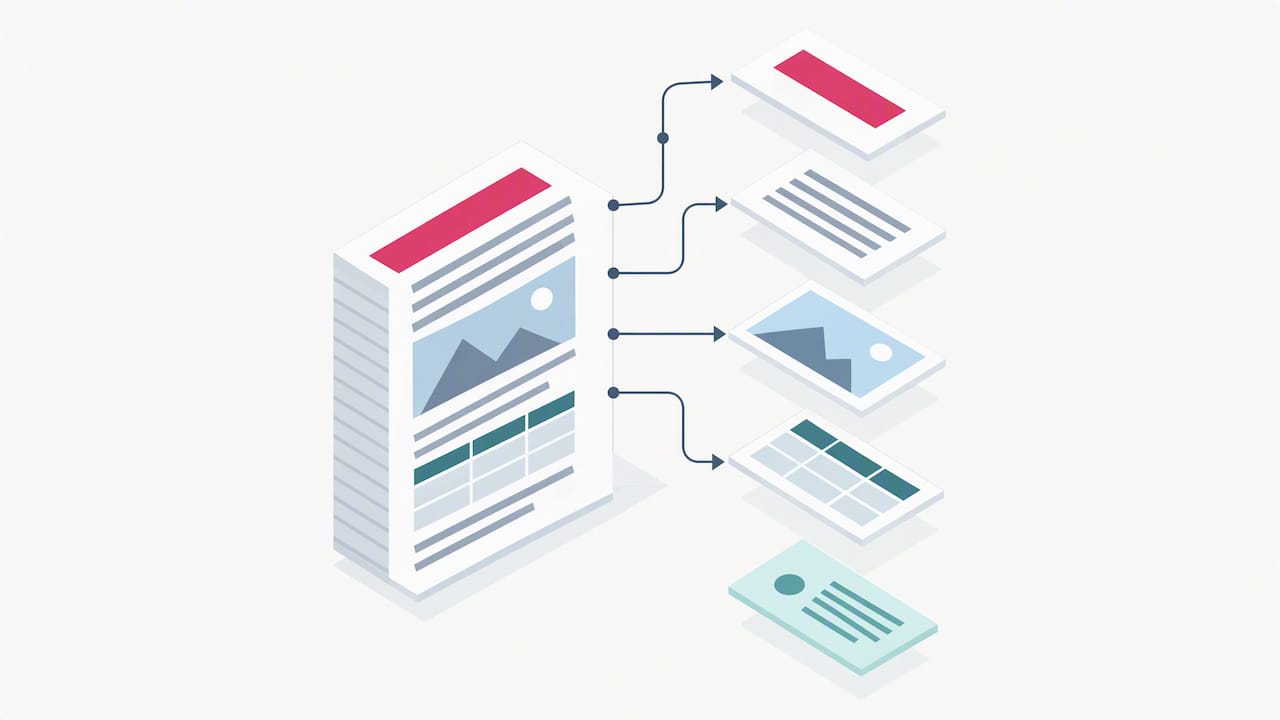
One of the most effective habits you can build is designing for accessibility in your source file, not after the fact, according to guidance on making PDFs WCAG compliant: remediating a finished PDF costs more time and rarely produces as clean a result as building tags in from the start.
A workable remediation sequence looks like this:
- Build heading styles, lists, and table structure directly in your source file, whether that’s Word or InDesign.
- Export with the “document structure tags for accessibility” option checked, so your tag tree carries over.
- Run the result through a PDF Accessibility Checker to catch missing tags, alt text gaps, and reading-order problems.
- Fix any flagged alt text, heading order, or table header issues, then re-export and re-check.
HTML remains the more accessible format by default because it reflows naturally for screen readers and zoom tools, so reserve PDF for the cases where a fixed layout genuinely matters, like a printable sell sheet or a formal proposal.
Tools, templates, and an export checklist you can use today
Different tools suit different jobs. InDesign and Word handle complex, multi-page layouts with tables and nested lists more reliably than lightweight editors, and accessibility guides note that Google Docs has real limitations for multi-column designs and reading order, so save it for simpler one-pagers. Template-based design tools speed up quick social graphics and single-page flyers, while dedicated PDF utilities handle compressing, splitting, and merging finished files.
Before you hit export, run through this checklist:
- Set the document title and language in your file’s metadata.
- Apply heading styles instead of manually bolding text.
- Add alt text to every meaningful image.
- Export as a tagged PDF with structure tags enabled.
- Choose a recent Acrobat compatibility setting so modern tags carry through.
- Optimize images for screen resolution to control file size.
- Run a PDF Accessibility Checker before you publish.
Template governance matters once you’re producing PDFs regularly. Keep a master template for each collateral type, organize approved assets in shared folders, and save your export presets so every team member produces the same tagged, compressed, on-brand output without starting from scratch.
Distribution, SEO, and measurement for PDF marketing collateral
A well-designed PDF still needs a distribution plan. Give the file a descriptive filename instead of a string of numbers, link to it from a relevant HTML page, and make sure your robots.txt file isn’t blocking it from search crawlers. Readable, tagged text inside the PDF itself also helps search engines index its content, which is one reason structural accessibility work pays off in discoverability well beyond assistive technology users.
On mobile, smaller file sizes and single-column reflow keep load times reasonable, and it’s worth testing your call-to-action buttons on an actual touch screen before launch.
For measurement, skip relying on raw server logs. A simple, reliable setup looks like this:
- Route downloads through a landing page that captures UTM parameters before the reader reaches the file.
- Track each download as a trackable event in your analytics platform.
- Use short links when sharing the PDF on social channels, so you can measure clicks separately from downloads.
- A/B test your cover image and call-to-action wording, or run a heatmap tool on the landing page that hosts the download.
Perspective: practitioner notes and quick wins
I’m Jon, and most of what I know about PDF collateral comes from watching marketing teams struggle with the same three problems: inconsistent templates, forgotten accessibility steps, and no way to track whether anyone actually opened the file. Brands using template-driven platforms, including case examples like Wine and Design and F45 Training®, show how much faster execution gets once a team works from a shared, pre-built structure instead of starting from a blank page each time.
Three quick wins if you’re starting today: build one template with your export settings locked in, run every PDF through an accessibility checker before it ships, and set up a download redirect so you can actually measure what happens after someone clicks.
What most PDF advice gets backward
Most guidance on PDF collateral treats accessibility as a compliance checkbox you handle at the end, right before publishing. That’s backward, and it’s why so many brochures and white papers ship with broken reading order and missing alt text. Accessibility built into your source file is a design decision, not a legal formality, and it happens to be the same work that makes your PDF easier to search, skim, and reuse.
The other overrated habit is treating every piece of content as PDF-first. Plenty of marketers default to PDF because it feels more polished, when an HTML page would reach more readers, rank better, and update without a re-export. Save the PDF format for the moments it actually earns: printable handouts, offline distribution, or documents that need to look identical everywhere they land.
If you take one thing from this guide, prioritize the source file. Clean heading styles, labeled images, and a locked export preset solve more problems than any amount of post-publication fixing ever will.
— Jon
How Photofy speeds up template and asset workflows
Building a new brochure template from scratch every quarter wastes hours your team doesn’t have, and keeping a growing library of approved assets straight across multiple people gets harder as you grow. We built our platform to solve exactly that friction for teams producing visual marketing content regularly.
What that looks like in practice:
- Pre-designed templates you can adapt instead of rebuilding layouts from zero.
- A shared asset library so every team member pulls from the same approved photos and graphics.
- Options for agencies and enterprise teams that need consistent branding across locations.
- Built-in approval steps to help ensure published assets are reviewed appropriately.
- Scheduling tools designed to streamline posting finished assets to your channels.
If your team manages collateral across multiple locations or a distributed sales network, our enterprise solutions are built for that kind of governance. For individuals and small teams getting started, check our pricing page to find the plan that fits.
FAQ
What is an example of marketing collateral?
Common examples include brochures, sell sheets, one-pagers, white papers, event flyers, and ebooks, each built to inform or persuade a specific audience. PDF versions of these assets work well when the layout needs to stay fixed for print or offline sharing, according to Shopify’s overview of digital marketing materials.
What is the 3-3-3 rule for marketing?
Definitions vary across marketing resources, and no single authoritative source in this guide defines a standardized 3-3-3 rule. If you’ve encountered the term elsewhere, treat it as a informal framework rather than an established industry standard.
What are the key terms to know in a PDF marketing document?
Terms worth knowing include tagged PDF, which refers to the hidden structure that makes a document readable by screen readers, and alt text, the written description attached to an image for the same purpose. Document metadata like title and language, along with PDF/UA and WCAG 2.1 AA compliance, round out the core vocabulary covered in accessibility guidance on PDF structure.
What is the best marketing collateral format?
The best format depends on the job: HTML tends to perform better for searchability and reflow, while PDF suits printable or fixed-layout needs like spec sheets and brochures. Teams that want consistent, on-brand output across multiple pieces often rely on a template-driven platform to keep design and messaging aligned.
How do I make a PDF accessible?
Start by building heading styles, labeled images, and table structure in your source file, then export with tagged structure enabled rather than trying to fix a finished PDF. Run the result through a PDF Accessibility Checker to catch any remaining gaps in alt text or reading order, following the stepwise approach outlined in current accessibility guidance.
Sources
- PDF Accessibility: How to Make PDFs WCAG Compliant (2026)
- WCAG vs PDF/UA guidance — University at Buffalo
- Digital marketing materials: 6 types and examples — Shopify