

How to Stitch Videos on Your Phone: Easy Methods
The fastest way to stitch videos on your phone is to use iMovie on iPhone or Google Photos on Android — both are free, built-in, and require no downloads. For repeat, branded social content, Photofy adds templates, scheduling, and asset management on top of basic stitching.
Quick picks:
- iPhone: Open iMovie, create a Movie project, select your clips, arrange them on the timeline, and export directly to Photos.
- Android: Open Google Photos, select your clips, tap +, choose Movie, edit, and save.
- Repeat/branded work: Use Photofy for templated outputs, scheduling, and consistent brand visuals across posts.
Key Takeaways
The fastest, most reliable way to stitch videos on your phone is to use the built-in tool for your device first, then reach for a third-party app or branded platform only when the built-in option falls short.
| Point | Details |
|---|---|
| iPhone built-in route | Use iMovie to create a Movie project, arrange clips, and export up to 4K at 60fps back to Photos. |
| Android built-in route | Select clips in Google Photos, tap + → Movie, edit, and save — no extra app needed on most devices. |
| Pre-export checklist | Run 5 checks: clip order, trimmed frames, matched aspect ratios, audio levels, and a full preview. |
| Top troubleshooting fix | Free up storage, update the app, and drop export resolution to 1080p if crashes persist. |
| Photofy for branded work | Use Photofy when you need templated, scheduled, on-brand video posts on a repeat schedule. |
Table of Contents
- How do you stitch videos on your phone using iMovie?
- How do you combine videos on Android using Google Photos?
- Which app category is best for stitching videos on your phone?
- Can you stitch videos in your phone’s browser without installing an app?
- What’s the 5-step checklist before you export a stitched video?
- How do you fix common problems when stitching videos on your phone?
- When should you use a quick app vs. a branded platform like Photofy?
- Photofy makes repeat video stitching faster for your brand
- Sources
How do you stitch videos on your phone using iMovie?
Use iMovie to create a Movie project and export the finished clip back to Photos. The process is straightforward and works entirely on-device.
- Open iMovie and tap Start New Project, then select Movie.
- Tap Media and choose the video clips you want to combine from your Photos library.
- Tap Create Movie to load the clips onto the timeline.
- Press and hold any clip to drag it into a new order.
- Tap a clip to reveal trim handles; drag the edges to cut dead frames from the start or end.
- Tap the transition icon between clips to choose a cut, dissolve, or slide.
- Tap Done, then the share icon, and select Save Video to export back to Photos.
Per Apple Support, iMovie builds the combined video from your Photos library and saves the result right back there, so your originals stay untouched.
Pro Tip: Before exporting, tap the share icon and check the resolution selector. iMovie supports export up to 4K at 60 frames per second, so choose the highest resolution your storage allows for the sharpest result.
You can also trim individual clips in the Photos app before bringing them into iMovie. Open any clip in Photos, tap Edit, drag the yellow trim handles, and tap Done to save as a new clip without overwriting the original. Trimming first keeps your iMovie timeline clean from the start.
How do you combine videos on Android using Google Photos?
On many Android phones, Google Photos handles basic video combining without any third-party app. The workflow is quick once you know where to look.
- Open Google Photos and tap the first video you want to include.
- Tap Select and tap each additional clip to add it to the selection.
- Tap + at the top, then choose Movie.
- Drag clips to reorder them, trim start and end points, and adjust the title if needed.
- Tap Save and the finished movie exports to your Photos library.
Community guidance confirms that the + → Movie path is the standard route, though the exact button placement can vary slightly between Android versions and device manufacturers.
If Google Photos doesn’t show the Movie option on your device, a simple third-party phone editor fills the gap. The general flow is the same across most apps: import clips, reorder them on a timeline, trim each one, and export. The interface changes; the logic doesn’t.
Pro Tip: Keep your apps updated. Recent versions of Google Photos and most Android editors unlock multi-file selection, which lets you queue 10 or more clips at once instead of adding them one by one.
Which app category is best for stitching videos on your phone?
The right tool depends on what you need the finished video to do. Here are the five categories worth knowing:
- Built-in apps (iMovie, Google Photos): Free, private, no watermark, best for quick personal clips.
- Simple merge apps (single-purpose combiners): Free or freemium, fast, minimal learning curve, ideal for social-ready clips.
- Montage/AI apps: Freemium, auto-sync music to cuts, great for fast highlight reels; free tiers often add a watermark.
- Browser PWAs (no-install web tools): Free, no download needed, best for one-off jobs on any device.
- Branded SaaS platforms (Photofy): Subscription, templates, scheduling, asset library, white-label options; built for repeat marketing workflows.
Free tiers on montage and merge apps commonly cap export resolution at 720p or add a watermark until you upgrade. Built-in tools like iMovie and Google Photos carry no such limits.
Can you stitch videos in your phone’s browser without installing an app?
Yes. Several mobile-friendly web tools and progressive web apps (PWAs) let you combine clips directly in your browser. The key privacy distinction is whether the tool processes your footage locally or uploads it to a remote server.
Typical browser-based workflow:
- Open the tool’s URL in Chrome or Safari on your phone.
- Tap Import or Add Files and grant file access.
- Drag clips into the order you want.
- Trim start and end points using the on-screen handles.
- Tap Export and save the finished file to your Photos library.
Tools that use WebAssembly run the video processing directly on your device, so your footage never leaves your phone. That matters when you’re working with sensitive footage — legal recordings, medical clips, or anything you wouldn’t want on a third-party server. If a tool requires you to create an account before downloading your export, it’s almost certainly uploading your files.
Pros of browser tools: No storage used by an app, works on any phone, no account needed on most.
Cons: Large files (over 500MB) can slow or crash mobile browsers, and export options are usually more limited than native apps.
Pro Tip: On iPhone, use Safari for browser-based video tools. Chrome on iOS sometimes blocks local file access for video, which can prevent the tool from reading your clips at all.
What’s the 5-step checklist before you export a stitched video?
Run these five checks so your stitched video exports cleanly and shares without issues.
- Confirm clip order and timing. Scrub through the full timeline and verify every clip appears in the right sequence with no accidental duplicates.
- Trim dead frames. Cut any black frames, shaky starts, or silent pauses at the beginning and end of each clip.
- Match aspect ratios. Check that all clips share the same ratio. Mixed ratios produce black bars or cropped edges in the final export. Use Photofy’s video aspect ratio guide as a quick reference for social platform specs.
- Check audio levels and sync. Play through the full video with headphones. Sudden volume spikes or audio that drifts out of sync are much easier to fix before export than after.
- Preview the full timeline. Watch the entire video from start to finish before tapping Export. This is the step most people skip and then regret.
Pro Tip: Save your export as a new file rather than overwriting the project. Most apps give you a “Save to Photos” option that keeps the original clips intact. Also check your available storage before exporting — a 4K video can consume several gigabytes, and a full device will fail the export silently.
How do you fix common problems when stitching videos on your phone?
Most export failures come down to three causes: low storage, codec mismatches between clips, or an outdated app. The fixes are quick.
- Free up storage first. Delete unused apps or move photos to iCloud/Google Photos before exporting. A device with less than 1GB free will often fail mid-export.
- Update your app and OS. Many stitching bugs are patched in minor updates. Check the App Store or Google Play before troubleshooting further.
- Trim long clips. Clips over 5 minutes stress mobile editors. Split them into shorter segments before adding them to the timeline.
- Change the export codec. If the app offers H.264 or HEVC options, switch to H.264 for broader compatibility. HEVC files are smaller but can cause playback issues on older devices.
- Drop the export resolution. If the app crashes at 4K, export at 1080p instead. You can always re-export at higher quality once the project is stable.
- Restart the app and phone. A fresh memory state clears most random crashes.
Resolving audio gaps and frame-rate mismatches deserves its own note. If two clips were recorded at different frame rates (say, 24fps and 60fps), most apps will handle the conversion automatically, but the result can look choppy at the join. The cleanest fix is to set your camera to a single frame rate before recording. If the clips are already mixed, look for an “export fps” setting in your editor and lock it to 30fps, which both clip types can convert to cleanly.
For sensitive footage, an on-device-only app or a WebAssembly browser tool is the right call. No frames leave the device, which matters in legal, medical, or secure fieldwork situations.
When should you use a quick app vs. a branded platform like Photofy?
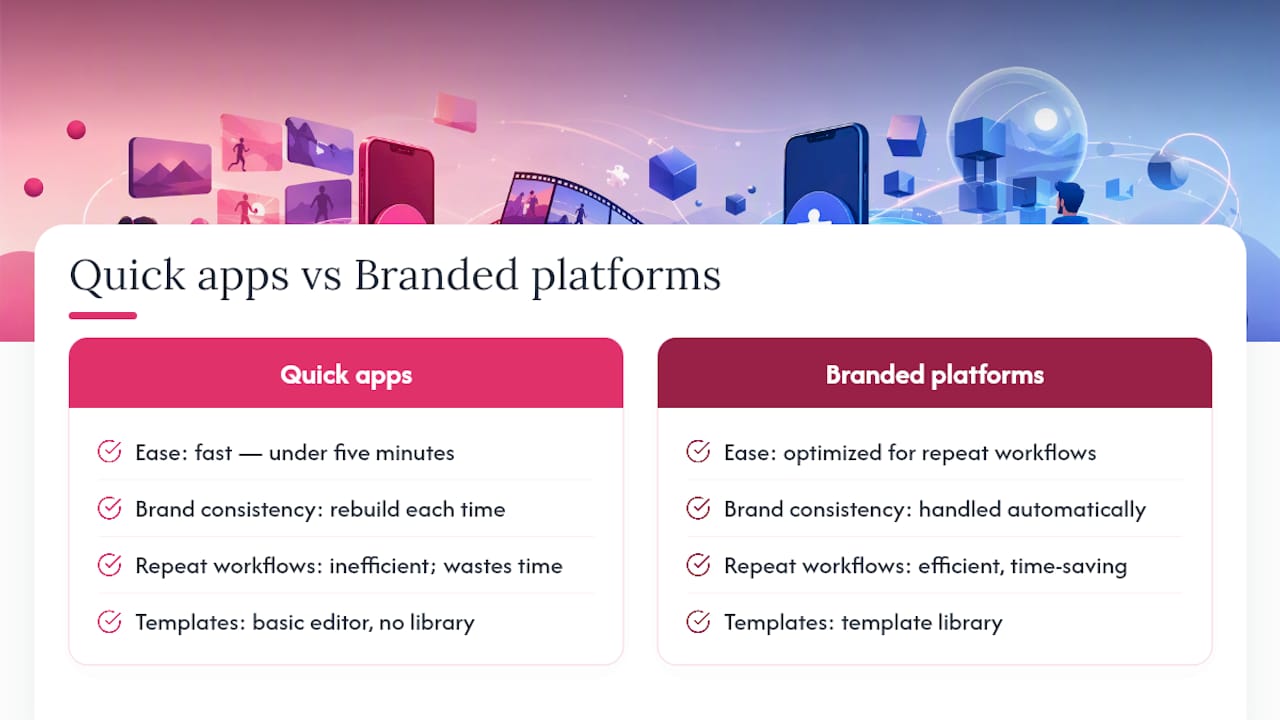
Use a quick app for one-off personal clips. Use Photofy when you need repeatable branded outputs, templates, and scheduling.
The distinction is simpler than it sounds. If you’re combining a few vacation clips for a family group chat, iMovie or Google Photos gets the job done in under five minutes with zero cost and zero complexity. That’s the right tool for that job.
The calculus shifts the moment you’re producing content on a schedule. A real estate agent posting weekly property walkthroughs, a franchise posting daily promotions, or a direct sales professional keeping brand visuals consistent across Instagram, Facebook, and TikTok — these aren’t one-off tasks. Rebuilding the same branded look from scratch every week in a basic editor wastes time that compounds fast.
Photofy’s template library, asset management, and scheduling tools exist precisely for that repeat-workflow scenario. The platform handles the brand consistency layer so you’re not re-creating the wheel each time. For AI-assisted content planning that pairs well with templated video workflows, AI content planning tools can help you map out a publishing calendar before you even open the editor.
The honest answer: most people need both. A quick native app for spontaneous clips, and a branded platform for anything that goes out under a business name.
Photofy makes repeat video stitching faster for your brand
If you’re posting branded video content more than once a week, rebuilding your look from scratch in a basic editor is the slowest part of your workflow. Photofy gives you pre-designed templates, a full asset library, scheduling, and white-label options so every post goes out on-brand without starting over.

The platform works on iOS, Android, and desktop, so you can stitch, brand, and schedule from your phone or your desk. Photofy’s personal solutions are built for individual creators and small businesses who need fast, consistent content without an agency budget. For teams and franchise networks, the enterprise tier adds white-labeling and multi-user brand management.
Ready to cut the time you spend on repeat video posts? See what Photofy can do for your content workflow and start with the plan that fits your publishing pace.
Sources
- How to combine videos on iPhone – Apple Support
- How do I combine two videos – Google Photos Community