

User Permissions in Social Tools: Roles, Access and Approvals
User permissions in social tools decide who on your team can connect accounts, create drafts, approve posts, publish, see analytics and manage other users. Set them well and your brand stays consistent while your team moves fast. Set them badly and you end up with either a bottleneck, because everyone waits on one admin, or a risk, because anyone can post anything. This guide explains what permissions actually control, how roles usually differ, how tool permissions relate to those granted by the social networks themselves, and how to review and revoke access as people change jobs.
TL;DR
- Permissions are the rules that decide which actions each person can take: draft, edit, approve, publish, download, manage users.
- Assign permissions to roles, not to individuals, and keep the number of roles small. Creator, approver and administrator cover most teams.
- A social management tool sits on top of the network’s own access levels. Both layers matter, and the network always has the final say.
- Review access on a schedule, and remove it the day someone leaves or changes role.
- Approval steps are how permissions protect your brand voice, not just your security.
Table of Contents
- What are user permissions in social media tools?
- What can permissions control, from social accounts to shared assets?
- How do roles differ for creators, editors, approvers and administrators?
- How do tool permissions differ from those granted by the social network?
- How do you set up permissions and approvals that protect your brand?
- What security practices should you follow when granting access?
- How should you review and revoke permissions over time?
- Our perspective: permissions should enable people, not slow them down
- Where does Photofy fit?
- FAQ
- Sources
What are user permissions in social media tools?
A permission is a single yes or no for one action. Can this person upload a photo to the shared library? Can they edit a caption someone else wrote? Can they push a post live to the company Instagram account? A role is a bundle of those permissions with a name, such as “Creator” or “Administrator.” A user is a person assigned to one or more roles.
This matters in social tools more than in many other software categories, because a social post is public the moment it publishes. A wrong spreadsheet edit can be fixed quietly. A wrong post on a brand account is seen by customers, screenshotted and shared. Permissions are the control that sits between a draft and the public.
In practice, permissions in a social tool fall into four groups:
- Account access: who can connect, disconnect or switch social profiles and pages.
- Content actions: who can create, edit, delete, schedule and publish posts.
- Asset access: who can view, upload, download and manage the photos, videos and PDFs in your shared library.
- Administration: who can add or remove users, change roles, and see billing or reports.
What can permissions control, from social accounts to shared assets?
Access to social accounts
The most sensitive permission is the ability to connect an account. Whoever connects a profile creates the link between your tool and the network, and whoever can disconnect it can break every scheduled post. Most teams reserve this for one or two administrators.
Content actions
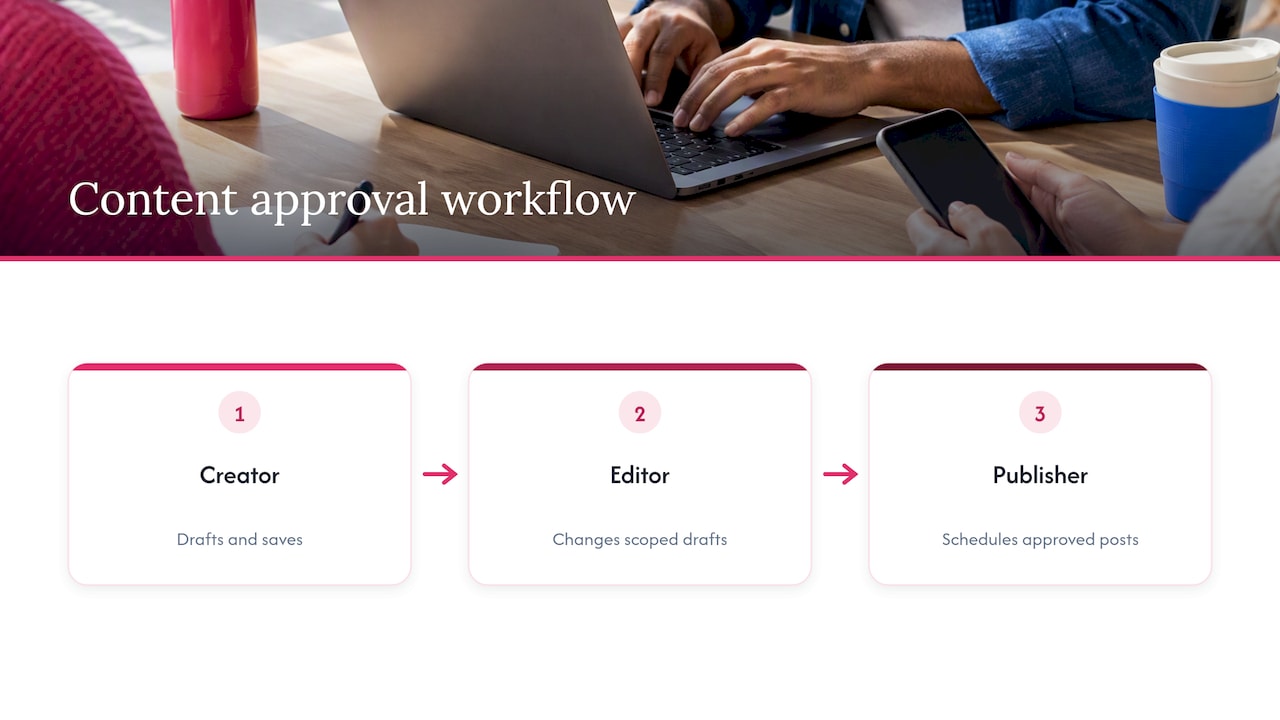
Content permissions are the ones your team feels daily. A creator might draft and save but not publish. An editor might change any draft in their scope. A publisher might schedule approved posts only. Separating these steps is what makes an approval workflow possible, because the person who writes a post is no longer the only person who can send it.
Shared photo, video and PDF assets
If your team shares media, permissions also reach into the library. Documentation from media tools shows how granular this can get. Vimeo’s help center describes levels such as Can view, Can comment, Can edit and Can manage access for shared videos and folders, with administrators and owners able to manage access to all account content. Canto’s role documentation shows asset permissions that can cover viewing, uploading, editing, deleting, downloading, commenting, sharing, approving and managing users or workflows, and it describes a view-oriented Consumer role that cannot upload, edit or manage content.
The lesson for a marketing team is simple. A franchisee, a sales rep or a dealership employee often needs to find an approved image and use it, not change it or delete it. A view-and-download permission for them, and an upload-and-manage permission for your brand team, keeps your library clean. If you are building that library from scratch, our metadata-first asset library checklist walks through the setup.
How do roles differ for creators, editors, approvers and administrators?
Names vary by tool, but the shape is consistent. Sitecore’s guidance for its Content Hub describes a common structure: creators create and edit assets and submit them for approval, approvers review and approve or reject, and administrators manage global settings, permissions and users.
For social teams, that translates into the table below. Treat it as a starting point, not a standard.
| Role | Typically can | Typically cannot |
|---|---|---|
| Creator | Draft posts, upload or select assets, submit for review | Publish directly, connect accounts |
| Editor | Revise drafts, adjust captions and visuals, submit for approval | Approve their own work |
| Approver | Approve, reject or comment on drafts | Manage users or connected accounts |
| Publisher | Schedule and publish approved posts | Approve, add users |
| Analyst | View reports and performance data | Change content |
| Administrator | Connect accounts, manage users and roles, adjust settings | Nothing by design, so keep this group tiny |
One practical comparison of agency setups uses six roles like these and recommends scoping each person to the specific accounts they work on, so nobody sees work that is not theirs. That scoping idea is the most useful one for franchises and multi-location brands: a manager in Denver should see Denver’s accounts and approved brand assets, not every region’s drafts.
How many roles do you really need?
Fewer than you think. A solo owner needs none. A small business with a part-time helper needs two: someone who creates and someone who administers. A team with outside reviewers, such as legal or a franchise brand manager, adds an approver. Past five or six roles, people start getting assigned to the wrong one “just to make it work,” and the structure loses its value.
How do tool permissions differ from those granted by the social network?
There are two layers, and confusing them causes most access headaches.
The first layer is the network’s own access. Facebook, for example, lets a Page admin with full control give other people access, and its help page explains that access levels include full control, which can manage all Page settings, and partial access, which can create content and interact as the Page. You need full control yourself to grant any of it.
The second layer is the tool’s permissions. When you connect a profile to a management tool, you authorize the tool to act on the account, and the network decides which actions that connection allows. Publishing capabilities and the OAuth scopes required to enable them differ by network, including Instagram, Facebook, LinkedIn, TikTok, YouTube and X.
What this means in practice:
- A tool cannot give a user more power than the connected account allows. If the person who connected the profile only had partial access, the tool inherits that ceiling.
- A tool can give a user less power than the network would. This is the real value of tool-level roles: a team member can draft in the tool without ever holding the network login or password.
- Removing someone from your tool does not automatically remove them from the network. You need to check both places when someone leaves.
The cleanest habit is to keep network-level access to a very small group and let everyone else work through the tool’s roles. If you are comparing scheduling options, our guide to picking a social media scheduling tool covers what to look for beyond permissions.
How do you set up permissions and approvals that protect your brand?
Permissions are not only a security feature. They are the mechanism that keeps your brand consistent when more than one person posts. Here is a process that works for most teams.
- List the actions, not the people. Write down every step from idea to published post: draft, add visuals, review, approve, schedule, publish, report.
- Group the actions into roles. Put steps that need judgment about the brand, like approval, with people who own that judgment.
- Separate writing from approving. The person who creates a post should not be the only person who can approve and publish it. Our guide to building a content approval workflow with risk tiers shows how to let low-risk posts move quickly while sensitive ones get a second pair of eyes.
- Lock the brand elements. Give local users approved templates, fonts, colors and logos they can customize within limits, rather than a blank canvas. A brand governance framework describes how to roll this out across distributed teams.
- Scope by account or location. Each person sees only what they work on.
- Document it. Keep a one-page record of who holds which role and why.
If you manage many locations, the roles in our piece on keeping posts local across multiple locations show how to give local reps real freedom without giving up control.
Who can schedule and publish?
The publish permission deserves its own decision. Many teams split it from creation so that only approved content can reach the schedule. Understanding exactly which actions team members can perform when publishing or scheduling is easier when you see how an automated content publishing platform separates planning from the final send. Whatever tool you use, ask the same question: can a creator send a post live without anyone else seeing it? If yes, decide whether that is acceptable for your risk level.
What security practices should you follow when granting access?
A few habits cover most of the risk.
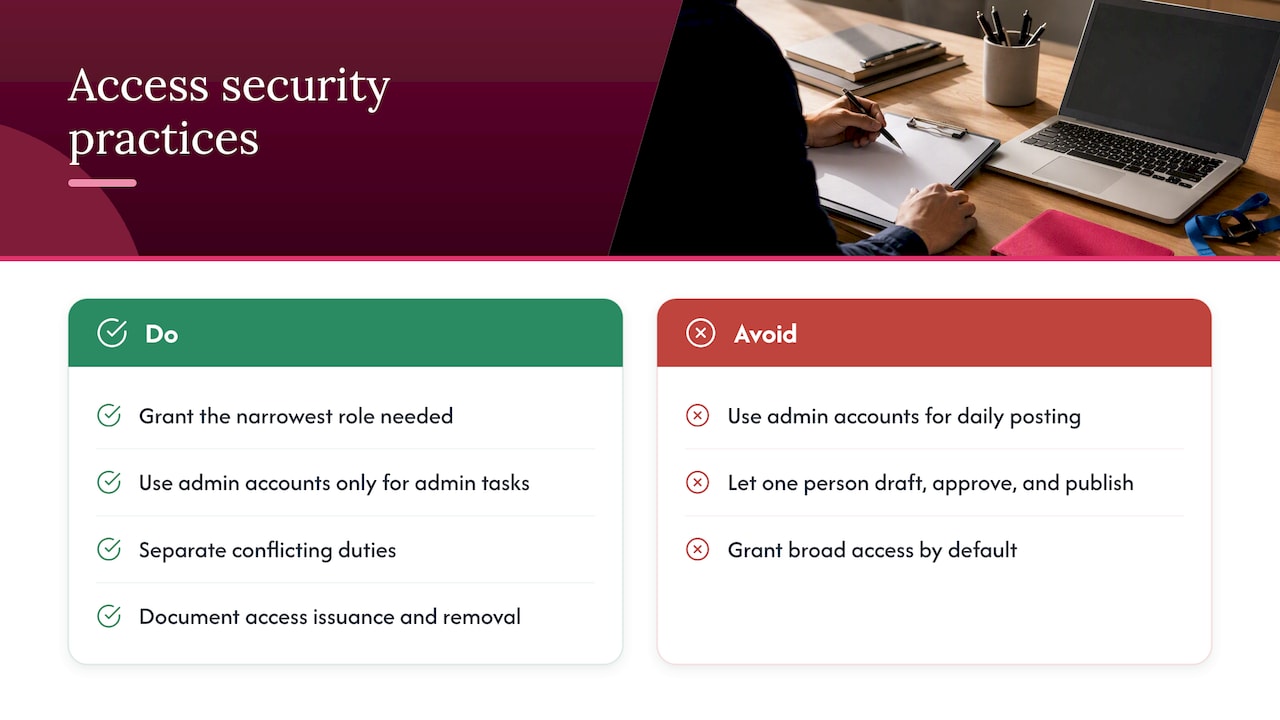
Grant the least access needed. Start every new user with the narrowest role that lets them do the job, and widen it only on request. A checklist for access reviews from POPProbe includes least-privilege checks and asks whether every privileged account has a documented business justification.
Use administrator accounts only for administration. The same checklist calls for administrative accounts to be used only for administrative tasks, with multi-factor authentication on privileged accounts and monitoring of privileged sessions. For a small team, the simple version is this: your admin logs in as a regular user for daily posting and only switches to the admin account to change settings. Washington State’s access control policy takes the same approach, requiring separate credentials for administrative roles that need elevated access.
Separate conflicting duties. That same policy requires separating conflicting access privileges so no single person can perform tasks that could lead to fraud. It is written for state agencies, but the principle fits a brand account too: the person who drafts a promotion should not also be the only person who approves and publishes it.
Write down how access is issued and removed. The Washington policy also requires documented procedures for account issuance, maintenance and revocation. For your team, that can be a short internal page: who approves new access, who adds it, who removes it.
How should you review and revoke permissions over time?
Permissions drift. People change jobs, contractors finish projects, and temporary access becomes permanent. Without a review rhythm, you collect old accounts that no one remembers.
Run a quarterly review
Once a quarter, export or open your user list and ask four questions for each person:
- Are they still on the team or engagement?
- Does their role still match their work?
- Do they still need access to every account they can reach?
- Has anyone left who knew a shared password?
The POPProbe checklist is built around this rhythm. It asks teams to confirm that terminated users’ access is removed, that role changes are handled, and that shared credentials known to departed employees are rotated.
Tie removal to real events
Do not wait for the next review when someone leaves. The access governance group NHIMG recommends triggering reviews and revocation from source-of-truth events such as termination or contract end. For a small business, that means one line on your offboarding checklist: “Remove from social tool and from every network.”
Remove everything, not just the login
Deleting a user is only part of the job. SIIT’s overview of access revocation describes complete revocation as spanning accounts, credentials, session tokens, OAuth grants and API keys, and treats coordination between HR and IT as a formal control. If a former contractor authorized an app on your Facebook Page, removing them from your tool will not undo that.
Our perspective: permissions should enable people, not slow them down
We see the same pattern in the teams we work with, from direct sales organizations to franchises and dealer networks. The first instinct is to lock everything down, and the result is a brand team buried in approval requests while field reps go back to posting from their personal phones with off-brand images. That outcome is worse for security and worse for the brand.
Our approach is to put the control in the content itself. When local reps start from approved templates, a shared asset library and locked brand elements, most of what they create is already on brand, so approvals can focus on the few posts that carry real risk. White-labeling for enterprise clients extends this: the platform carries your brand, and each person works inside the boundaries you set.
If you remember one thing, make it this: permissions work best when people can see why they exist. Tell your team that roles protect the brand and make their own work easier, and they will use the system instead of working around it.
— Jon
Where does Photofy fit?
Photofy brings branded content creation, team approvals, asset management and automated publishing into one platform, so the people who create posts work from the same approved templates and assets your brand team manages. It runs on iOS, Android and desktop, which matters when your reps are in the field.
Pricing depends on how you work. The Small Business plan is $10.99 per month or $99 per year. Individual plans are listed on our individual plans page, and franchise and enterprise setups are handled by inquiry on the pricing page. If you manage a team, start there and tell us how many people need access and what each should be able to do.
FAQ
What is meant by user permissions?
User permissions are the rules that define what each person can do inside a tool. They cover actions such as viewing content, editing, approving, publishing and managing other users. Permissions are usually grouped into roles, so you assign a role instead of setting every action one by one.
Should I give my social media manager full admin access?
Only if they truly need to manage users and connect accounts. Most day-to-day managers can work with creator, editor or publisher rights. Keep full administrator access to one or two trusted people, and have them use a separate administrative login for settings changes.
Can someone still post if I remove them from my social tool?
Possibly, if they hold direct access on the social network itself. Tool roles and network access are separate layers. When someone leaves, remove them from the tool, then check the access list on each network, such as your Facebook Page access settings, and revoke any apps or tokens they authorized.
How often should I review who has access?
Quarterly is a practical rhythm for most teams, with immediate removal when someone leaves or changes role. Checklists for access reviews are commonly built around a quarterly cycle. A shorter interval makes sense if you have many contractors or seasonal staff.
Do freelancers and contractors need different permissions?
Usually yes. Give them the narrowest role that fits the project, scope it to the accounts they work on, and set a reminder to remove access when the contract ends. Avoid sharing passwords, since a shared credential has to be rotated once they leave.
Sources
- About member roles on Vimeo, Vimeo Help Center
- An introduction to user roles, Canto Help Center
- User Groups Setup, Sitecore Content Hub
- How do I give someone access to my Facebook Page?, Meta
- Social Media Role Permissions: the 6-Role Setup for Agencies
- Posts overview, SocialAPI documentation
- Quarterly User Access Review and Privilege checklist, POPProbe
- Access Control Policy, Washington Technology Solutions
- What breaks when access reviews and revocation are not tightly governed, NHIMG
- Access Revocation, SIIT