

How to Post a PDF to Instagram: 4 Methods That Work
You can’t upload a PDF to Instagram directly. The app takes photos and videos, so you have to turn the PDF into something it accepts: a carousel of page images, a link in your bio or Story, a short video, or a hosted file you share in a message. This guide walks through each method, tells you when to pick it, and shows the exact settings that keep your pages readable on a phone.
TL;DR
- Instagram does not support native PDF uploads in feed posts, Stories or DMs, so the file has to be converted or linked.
- For a short PDF, export each page as a JPG or PNG and post them as a carousel of up to 20 slides.
- For a long or interactive PDF, host it online and share the link in your bio or with a Link sticker in Stories.
- Keep every slide at the same aspect ratio (4:5 is a safe choice), or Instagram crops the later slides to match the first.
- Whatever method you use, design for a phone screen first. Most viewers will never open a desktop PDF viewer.
Table of Contents
- Why Instagram won’t take a PDF
- Method 1: Turn the PDF into an Instagram carousel
- Method 2: Share a link to the PDF
- Method 3: Turn the PDF into a short video
- Method 4: Send a PDF in a direct message
- Which method should you choose?
- Our perspective: why PDFs fail on social, and what to do instead
- Creating PDF-based posts with Photofy
- Build the workflow once, then reuse it
- Common mistakes to avoid
- A worked example
- FAQ
- Sources
Why Instagram won’t take a PDF
Instagram is built around pictures and video. If you have tried to send a price list, catalog or portfolio, you already know the app doesn’t support PDF uploads directly, and the same is true of several other social and messaging platforms. There is no hidden menu or trick that changes that for a standard account.
That is less of a problem than it sounds. Your PDF holds content your audience wants: a checklist, a menu, a market report, a product sheet. The goal is to get that content in front of people in a format the app handles well. There are four dependable ways to do it.
| Method | Best for | Keeps viewers in the app? | Effort |
|---|---|---|---|
| Image carousel | Short guides, checklists, lookbooks (up to 20 pages) | Yes | Medium |
| Link in bio or Link sticker | Long documents, forms, catalogs | No | Low |
| Short video | Highlights, step-by-step walk-throughs | Yes | Medium |
| Hosted link in a DM | One-to-one delivery of a freebie or quote | No | Low |
Method 1: Turn the PDF into an Instagram carousel
This is the method most people should try first. Instagram lets you put up to 20 photos and videos in one carousel post, so a PDF of 20 pages or fewer can travel as a single swipeable post. Experts point out that because Instagram is visual-first, brands that break a report into snackable branded images tend to hold attention better than those that simply send people to a static document.
Step by step
- Decide which pages deserve a slide. A 40-page report will not fit, and it should not. Pull the five to ten points that matter most.
- Export the pages as images. Instagram and WhatsApp take pictures, not PDFs, so each page has to become a JPG first. Most PDF readers and design tools have an “export as image” option.
- Match the shape. Crop or resize every page to the same aspect ratio before uploading. A vertical 4:5 shape fills the most screen in the feed.
- Check quality. For file size, aim for roughly 150 DPI and about 85% JPG quality, the settings the same guide suggests to keep sharpness on mobile while files stay manageable.
- Upload in order. Tap the plus icon, choose Post, tap the multiple-select icon, and pick your images in the order you want people to swipe.
- Write a caption that carries the load. Tell people what they will learn on the slides and what to do at the end.
The aspect ratio trap
This is where most PDF carousels go wrong. Business PDFs are usually letter-size pages in portrait, which is a different shape from Instagram’s feed formats. If your slides vary, Instagram crops every later image to match the first slide, which can slice off a headline or a phone number.
A practical fix is to place each page on a 4:5 canvas (1080 by 1350 pixels is the commonly cited size) with a margin around the content. Keep text well away from the edges. A letter-size page has no automatic safe zone, so you create one.
Redesign, don’t just screenshot
A page designed for print rarely works as a slide. Body text at 10 points becomes unreadable on a six-inch screen. When you convert, do these things:
- Enlarge the key line on each page into a headline.
- Cut paragraphs down to one idea per slide.
- Put your logo and brand colors in the same spot on every slide.
- Use the last slide for a single call to action.
If you want ideas for the structure, our post on carousel post ideas with three-part micro templates shows how to lay out a cover, a body and a close.
Method 2: Share a link to the PDF
Some documents will never fit a carousel: a 60-page catalog, a fillable form, a contract, a research paper. For those, host the file online and point people to it. The usual approach is to put the PDF on a cloud service such as Google Drive or Dropbox, or a dedicated document host, and then share the public link in your bio or a Story.
Where the link can live
- Your bio. One link sits in your profile. Many accounts point it to a simple page that lists several files.
- The Link sticker in Stories. Instagram lets everyone share links in Stories with the Link sticker. Tap the sticker icon, choose Link, paste your URL, and place it anywhere on the frame.
- A direct message. You can paste the URL into a DM to a customer who asked for the file.
Make the landing experience good
The link is only as good as what people see after they tap it. A PDF that isn’t optimized for mobile is a major barrier to conversion, because viewers must download a large file and pinch and zoom. Better options include a mobile-friendly web page with the content on it, or an interactive flipbook that reads like a page on a phone.
Before you share, check these four things:
- The sharing setting is “anyone with the link can view,” not “restricted.”
- The file opens on a phone over mobile data without a login.
- The file name is clear, since people will see it.
- You tested the link from a second account or a friend’s phone.
If you want to control who sees the file, some document hosts let you set access limits or remove the download button. That suits proposals and pricing sheets that you don’t want circulating.
Method 3: Turn the PDF into a short video
A video keeps people inside the app, and Reels and Stories give you reach that a static post may not. This method works well when your PDF is a step-by-step guide or a slideshow.
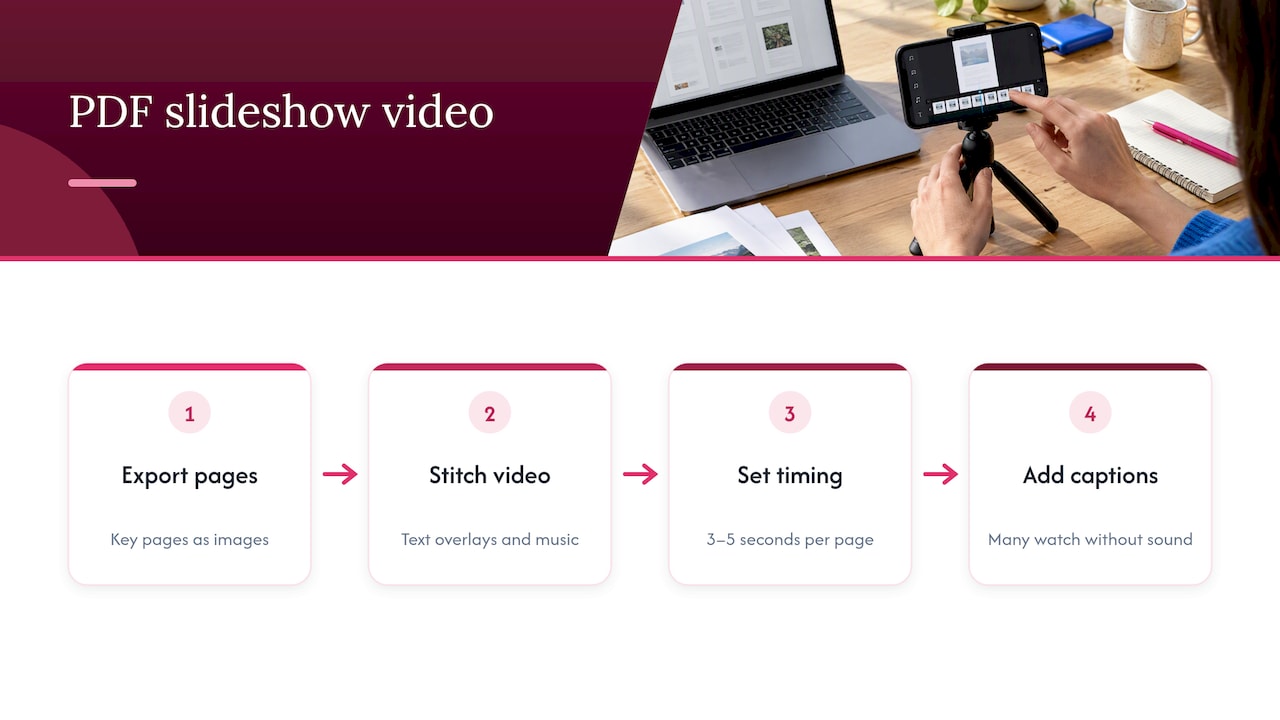
The simplest version is a slideshow video: export the key pages as images, then stitch them together with text overlays and music in a video editor. Keep each page on screen long enough to read, about three to five seconds for a headline and a line of text. Add captions, because many people watch without sound.
We built Photofy with this in mind. Video stitching, graphic and text overlays, and pre-designed templates are part of the platform, so you can assemble page images into a branded clip from your phone or desktop without a separate editing program.
Method 4: Send a PDF in a direct message
Standard Instagram DMs don’t carry PDF attachments, so the dependable route is a hosted link, as in Method 2. There is one area where that is changing: Instagram automation tools. A recent announcement says you can attach PDF files inside automated Instagram messages on some platforms, but that is a feature of particular messaging tools rather than of the app itself, and we couldn’t verify the details on a primary source. If you need to deliver a guide or ebook to many people, check the documentation of the tool you use before building a workflow around it.
For one-to-one conversations, a short message with a clear link does the job:
Here’s the menu you asked about: [link]. It opens right in your browser, no download needed.
Which method should you choose?
Use this quick decision guide:
- Your PDF has 20 pages or fewer and you want engagement: carousel.
- Your PDF is long, interactive or needs a signature: link.
- You want reach and your PDF is a how-to: video.
- You are replying to one person: hosted link in a DM.
- You want both reach and a download: post a carousel summary and put the full file link in the caption prompt (“link in bio”) and your bio.
That last combination is the one we recommend most often. The carousel earns attention, and the link delivers the whole document to people who want it.
Our perspective: why PDFs fail on social, and what to do instead
We work with small business owners, franchises, direct sellers and enterprise teams, and the same pattern comes up. Someone has a good PDF, such as a product sheet, a compliance-approved flyer or a dealer incentive guide. Then they try to post it on Instagram and hit a wall.
The wall is not really technical. A PDF is built for a desktop and for print. Instagram is built for a thumb on a phone. The fix is to change the format of the message, not to look for a workaround that smuggles a document into the feed.
For teams, the bigger problem is consistency. When a corporate office sends a PDF to 200 reps and each one screenshots it differently, the brand looks different every time: crops, fonts, logos in odd places. We believe the better path is to give people a template. They add their photo and their local details, and the layout, colors and approved wording stay locked. That is what white-label content management and templates are for, and it is why Photofy puts creation, approvals, asset management and publishing in one place.
This matters in industries where content moves in several formats at once. Car makers and dealers, for example, often need to give a sales team a photo, a video and a PDF together. The approach is the same: keep the PDF as your reference document, and create social-ready versions from it that people can post in a few taps.
Our advice is simple. Treat the PDF as the source, not the post. Pull out the three most useful ideas, make them look great on a phone, and link to the full document for anyone who wants more.
— Jon
Creating PDF-based posts with Photofy
If you post this kind of content often, a repeatable setup saves hours. Photofy is available on iOS, Android and desktop, so you can prepare slides on a computer and finish on your phone. It includes pre-designed and custom templates, a stock asset library, video stitching, graphic and text overlays, scheduling and analytics.
Here are the current published plans:
| Plan | Price | Page |
|---|---|---|
| Small Business | $10.99 per month or $99 per year | Small Business |
| Individual Plans | $11.95 per month, $29.97 per quarter or $99.95 per year | Individual Plans |
| Pro Teams | $13.00 per month per user | Individual Plans |
| Enterprise Teams | $9.00 per month per user | Individual Plans |
Pricing for the Individual and Enterprise tiers without a published figure is on our pricing page. If you are a creator or freelancer, our personal solutions are a good place to start. Franchises and larger organizations that need brand control across many locations can read about keeping posts local across multiple locations.
Build the workflow once, then reuse it
Posting a PDF to Instagram is a one-time chore the first time and a five-minute task the tenth time, if you set it up well. A repeatable content creation workflow usually covers planning, creating, approving and publishing, and it helps to write it down.
A simple version for PDF content:
- Source. Keep the master PDF in one shared folder with a clear version name.
- Extract. Choose the key pages or points. Note which ones become slides.
- Design. Build the slides from a template at 4:5, with one idea each.
- Approve. If your brand has rules or legal review, send slides for sign-off before posting.
- Publish or schedule. Post at a time your audience is active. Our guide to scheduling Instagram posts covers the planning side.
- Measure. Check saves, shares and link taps, and adjust the next carousel. For a reporting structure, see our social media reporting guide.
Desktop and mobile can pull in different directions here. Marketers often prepare content on a desktop and then find that some features, such as interactive stickers and link placement, work best in the mobile app. Plan your Link sticker step for the phone, and finish your design work where you are most comfortable.
Common mistakes to avoid
- Posting unreadable pages. If you can’t read a slide at arm’s length on a phone, your audience can’t either.
- Mixing aspect ratios. One landscape page in a portrait set will be cropped or will force the entire set to a new shape.
- Using a restricted file link. If viewers see an access-request screen, most will leave.
- Forgetting a call to action. Tell people to save the post, tap the link or message you.
- Sending people to a huge download. A 50 MB file on mobile data loses most of your audience.
- Putting the link in the caption. Links in captions are not clickable in the feed. Use your bio or a Link sticker and say so.
A worked example
Say you run a small home-services business and have a four-page PDF called “Spring maintenance checklist.”
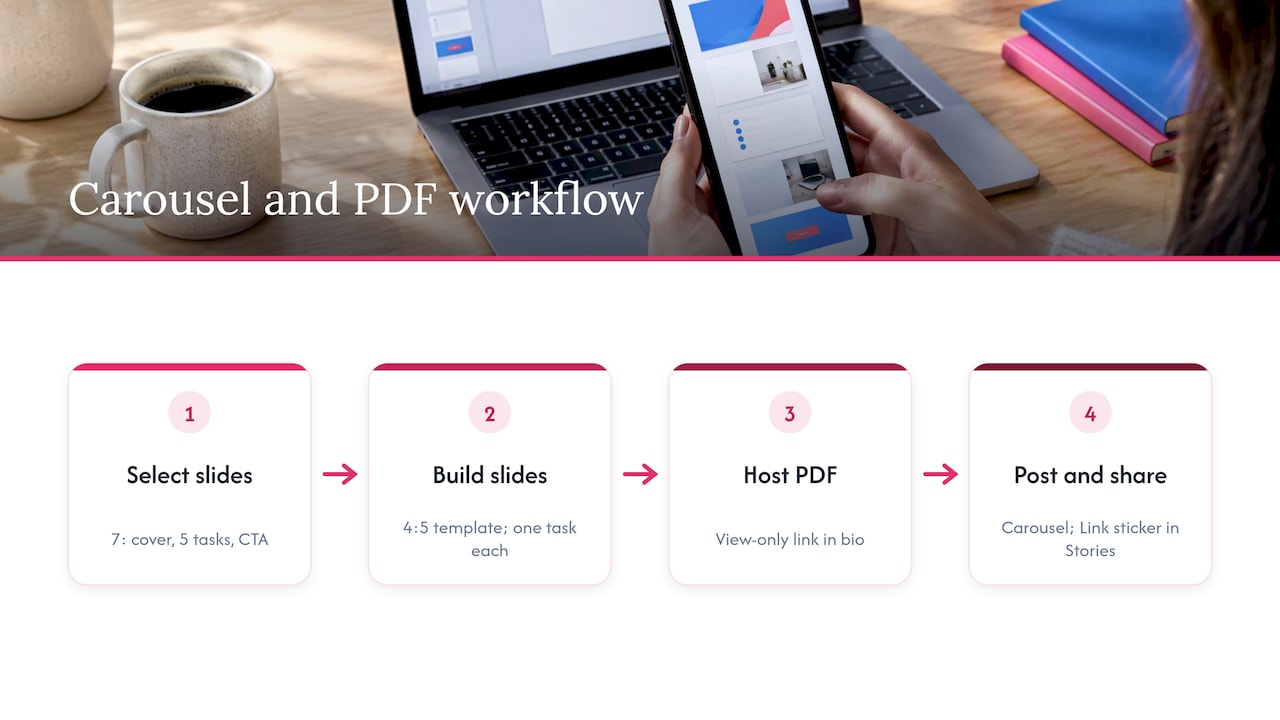
First, you decide the carousel will have seven slides: a cover, five checklist items, and a closing call to action. You pull one task from each section of the PDF.
Second, you build each slide on a 4:5 template with your logo in the corner and one task in large type. The final slide says “Get the full checklist: link in bio.”
Third, you upload the full PDF to a cloud folder, set it to view-only for anyone with the link, and check it on your phone. You put that link in your bio.
Fourth, you post the carousel with a caption that names the benefit, and you share the first slide to Stories with a Link sticker pointing to the file.
The result is that people who just want tips get them in the feed, and people who want the whole document have a one-tap route to it. If you want more on what makes a slide set perform, our post on unlocking high engagement with social content goes into detail.
FAQ
Can I post a PDF directly on Instagram?
No. Instagram does not support native PDF uploads for feed posts, Stories or direct messages. You need to convert the pages to images or video, or share a link to a hosted copy of the file.
How many PDF pages can I fit in one carousel?
Up to 20 items per carousel post, as of the latest guidance we found from August 2026. If your PDF is longer, pick the pages that matter most and link to the full document for the rest.
How do I turn a PDF into images for Instagram?
Export each page as a JPG or PNG using your PDF reader or a design tool, then resize them all to the same aspect ratio such as 4:5. Keep quality high enough to read on a phone, around 150 DPI is a reasonable target, and upload the images in order as a carousel.
How can I share a PDF with a clickable link?
Host the file on a cloud service or document host, make it viewable by anyone with the link, and add the URL to your bio or to a Link sticker in a Story. Test it on your phone first, since an unoptimized PDF is a common reason people drop off.
Sources
- How to send a PDF on Instagram (and other IM platforms), Flipsnack Blog
- How to Post Multiple Photos on Instagram (2026), Howsociable
- Post a PDF to Instagram or WhatsApp as images, GetPDFs
- How do I share a PDF on Instagram? PDFHost
- Share Links in Instagram Stories to Everyone, Instagram
- How to post to Instagram from desktop, Aerochat